Cuphead Controller Not Working: How to Fix It?
If your Cuphead controller is not working, you are not alone. Many players face controller issues while playing Cuphead on PC, console, or mobile ports. The good news is that most of these problems are easy to fix once you understand the cause. This guide explains why the controller may stop working and how you can fix it using simple steps.
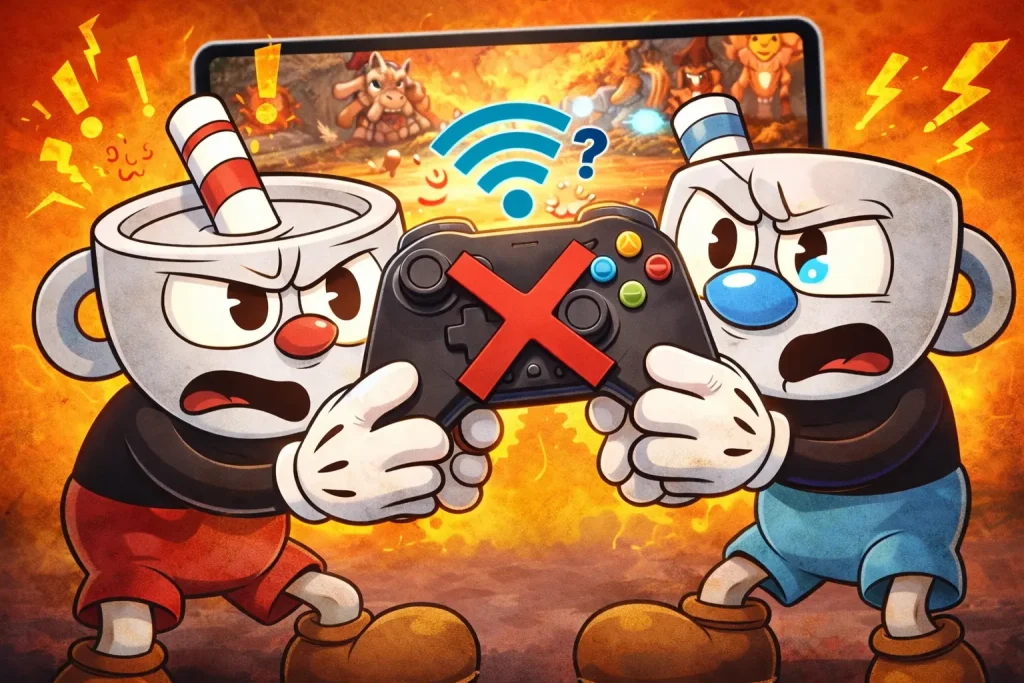
Why Your Cuphead Controller Is Not Working
There are several common reasons why a controller does not work in Cuphead. Sometimes the game does not detect the controller at all, and other times only some buttons fail to respond.
The most common reasons include outdated drivers, incorrect in-game settings, unsupported controllers, Bluetooth connection issues, or conflicts with other software running in the background. On mobile versions, poor controller mapping or unsupported APK builds can also cause problems.
Check If Your Controller Is Compatible with Cuphead
Before changing any settings, make sure your controller is supported.
Cuphead officially supports Xbox controllers and most XInput-based controllers. PlayStation controllers and generic gamepads may work, but they often require extra setup. On mobile, not all controllers are supported equally, especially with unofficial Cuphead mobile versions.
If you are using:
- Xbox controller: usually works without extra setup
- PlayStation controller: may need Steam Input or third-party tools
- Generic controller: may need manual button mapping
If the controller is not compatible, the game may not recognize it at all.
Fix Cuphead Controller Not Working on PC
Check Steam Controller Settings
If you play Cuphead on Steam, controller issues are often caused by Steam Input settings.
Open Steam and go to Settings, then Controller, then General Controller Settings. Make sure the correct controller type is enabled. For example, enable Xbox Configuration Support for Xbox controllers or PlayStation Configuration Support for DualShock controllers.
Restart Steam after changing these settings and then launch Cuphead again.
Enable Controller Inside Cuphead Settings
Sometimes the controller is connected, but Cuphead is still using keyboard input.
Open Cuphead and go to Options, then Controls. Make sure the controller is detected and assigned to Player One. Try reassigning buttons manually to confirm the game is receiving input.
If the controller does not appear in the controls menu, close the game, reconnect the controller, and relaunch Cuphead.
Update Controller Drivers
Outdated or corrupted drivers can stop the controller from working properly.
On Windows, open Device Manager, find your controller, and update the driver. If you are using an Xbox controller, installing the latest Xbox Accessories updates can also help.
After updating drivers, restart your PC and test Cuphead again.
Fix Cuphead Controller Not Working on Mobile
Many players use controllers with Cuphead APK versions on Android. Controller problems are more common on mobile, but they can still be fixed.
First, make sure your controller is properly connected through Bluetooth or USB OTG. Check if the controller works in other games. If it does not, the issue is with the controller connection, not Cuphead.
Some Cuphead mobile builds include custom controller support, while others do not. If your controller is not recognized, try another APK version that specifically mentions controller support.
Also check the in-game control settings and enable external controller input if available.
Fix Bluetooth Controller Connection Issues
Bluetooth controllers can disconnect or lag during gameplay, making it seem like they are not working.
Turn off Bluetooth, restart your device, and reconnect the controller. Make sure the controller battery is charged, as low battery levels can cause random input drops.
Avoid connecting multiple Bluetooth devices at the same time, as this can interfere with controller input.
Disable Conflicting Software
Other programs can block controller input in Cuphead.
Close background apps like controller emulators, key-mapping software, or overlays. On PC, tools like DS4Windows, reWASD, or older emulators can conflict with Steam Input if not configured properly.
Try running Cuphead with only one controller tool active, or disable all third-party tools and test the game again.
Test the Controller Outside Cuphead
If your Cuphead controller is not working, test it in another game or use an online controller tester.
If the controller does not work anywhere, the problem is likely hardware-related. Try another USB cable, charging the controller fully, or resetting it.
If the controller works in other games but not in Cuphead, the issue is almost always related to settings or compatibility.
Reinstall Cuphead as a Last Resort
If none of the fixes work, reinstalling the game can solve hidden configuration issues.
Before reinstalling, back up your save files if needed. After reinstalling, connect the controller first, then launch Cuphead. This helps the game detect the controller correctly on first launch.
Final Thoughts
A Cuphead controller not working issue can be frustrating, especially in a fast-paced game like Cuphead where precise controls matter. Most problems come from incorrect settings, driver issues, or compatibility limitations. By checking controller support, adjusting Steam or in-game settings, and fixing connection problems, you can usually solve the issue quickly.
Once your controller is working again, Cuphead becomes smoother, more enjoyable, and far less stressful to play. If you want, I can also write a meta description, FAQ section, or controller compatibility table for this topic.