How to Fix Lag and Improve FPS on Mobile Gaming
Quick Answer
The fastest way to fix lag and low FPS on mobile gaming is to lower your in-game graphics settings, close all background apps before playing, clear your game cache, and keep your phone cool during long sessions. For heavy games like Cuphead APK on Android, make sure your phone has at least 3GB RAM and 2GB of free storage before launching the game. Most performance problems are caused by overheating, full storage, or too many apps running at the same time.
Mobile gaming has improved a lot in recent years, but lag and low FPS still frustrate many players. A game that stutters or drops frames can ruin timing, especially in fast games like Cuphead where every movement matters. The good news is that most performance issues can be fixed with simple changes.
What Causes Lag and Low FPS on Mobile
Lag is not always about your internet. Many players assume slow network is the only problem, but mobile gaming performance depends on several factors.
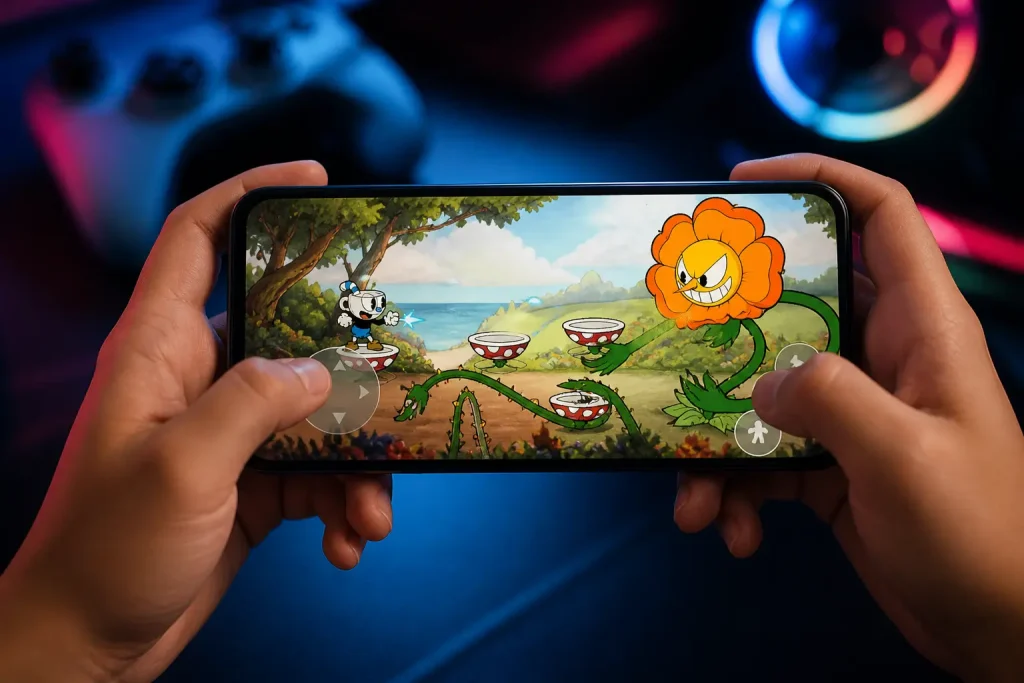
Your device hardware plays a big role. The CPU and GPU handle game processing. If they are weak or overloaded, the game cannot run smoothly. RAM also matters because it stores active game data. Low RAM leads to stutter and frame drops.
Storage can also affect performance. When your phone storage is almost full, apps slow down. Background apps consume memory and processing power without you noticing.
Heat is another hidden issue. When your device gets hot, it reduces performance to protect itself. This is called thermal throttling, and it directly lowers FPS.
How to Fix Lag and Improve FPS on Android — Step by Step
Check Your Device Capability First
Before trying any fixes, you need to know what your device can handle. Not all phones are designed for heavy gaming.
If your phone struggles with high graphics games, lowering settings is not a weakness. It is a smart move. Even powerful devices can lag if pushed beyond limits.
For example, if you are trying to run a high action game like Cuphead on a low end device, you will need to adjust settings for a stable experience.
Optimize In Game Settings
The fastest way to improve FPS is to adjust graphics settings inside the game.
Lower graphics settings reduce the load on your GPU. Turning off extra effects like shadows, reflections, and motion blur can instantly improve performance.
Frame rate settings also matter. If your game allows 30 FPS or 60 FPS options, choose the one your device can handle consistently instead of forcing higher settings.
Resolution scaling is another key factor. Lower resolution reduces visual quality slightly but gives smoother gameplay.
Close Background Apps
Many apps run in the background even when you are not using them. These apps consume RAM and CPU power.
Before starting a game, close all unnecessary apps. This frees up system resources and gives your game more power to run smoothly.
Also disable auto syncing apps during gameplay. Social media and cloud apps can cause random lag spikes.
Clear Cache and Free Storage
Cache files build up over time and slow down your phone. Clearing cache helps your system run more efficiently.
Go to your device settings and clear cache for heavy apps and games. Do not worry, this does not delete your progress.
Make sure you have enough free storage. Keeping at least 20 percent storage free helps maintain smooth performance.
Keep Your Device Cool
Heat is one of the biggest reasons for FPS drops. When your phone heats up, it automatically reduces performance.
To avoid this:
- Do not play while charging
- Remove phone case during long sessions
- Play in a cool environment
- Take short breaks between sessions
Cooling your device can make a noticeable difference in FPS stability.
Use Game Mode or Performance Mode
Most modern Android phones include a built in game mode. Brands like Samsung and Xiaomi offer gaming tools that boost performance.
Game mode usually does the following:
- Blocks notifications
- Clears background apps
- Optimizes CPU and GPU usage
Turn this feature on before playing to get better results.
Improve Internet Connection for Online Games
If you are playing online games, network lag can feel like FPS drops.
Switch to a stable WiFi connection instead of mobile data. If possible, stay close to the router. Avoid downloading or streaming while gaming.
Even though offline games like Cuphead do not depend on internet, many mobile games rely heavily on network stability.
Update Your System and Games
Updates are often ignored, but they can fix performance issues.
Game developers release updates to improve optimization. Android system updates also improve device performance and stability.
Keep both your apps and system updated for the best experience
Reduce Background Processes
Some apps run services even when closed. These processes use system resources silently.
Go to developer options and limit background processes if your device allows it. This can free up memory and improve FPS.
Be careful not to disable important system services.
Use Lite Versions or Alternative Settings
Some games offer lite versions or performance modes. These versions are designed for low end devices.
If a game feels too heavy, switching to a lighter version can make it playable.
You can also reduce in game audio quality and disable unnecessary features to save resources.
Signs Your Device Needs Upgrade
Sometimes optimization is not enough. If your device is too old, performance will remain limited.
You may need an upgrade if:
- Games crash frequently
- FPS stays low even on lowest settings
- Device overheats quickly
- Loading times are very long
Final Thoughts
Fixing lag and improving FPS on mobile gaming is mostly about balance. You do not need the most expensive phone to enjoy smooth gameplay. Small changes in settings, storage, and device usage can make a big difference.
Focus on stability instead of maximum graphics. A smooth 30 or 60 FPS experience is always better than high settings with constant lag. Whether you are playing action games, racing titles, or skill based games like Cuphead, performance matters more than visuals.
Keep your device clean, updated, and optimized. That is the key to better mobile gaming.
Also read: Can Low End Phones Run Cuphead Smoothly?